Optional next steps
Add support, not complexity.
If the simple routine works, stop there. These options are here for a particular need, not a checklist to finish.
Use the tasks you saved
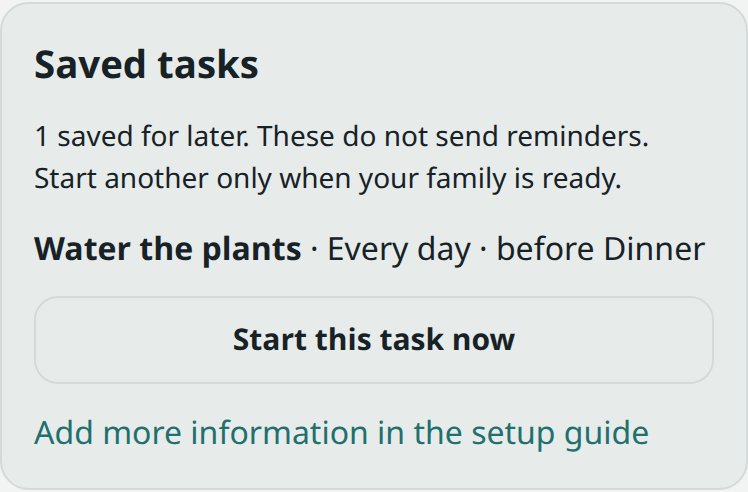
Extra tasks collected during setup wait in Settings → Saved tasks. They do not send reminders or restrict apps while saved for later. Enable more when the family is ready; you do not need to enter them again.
Make reminders clearer first
Check that notifications are allowed and arrive at a useful time. Make task names specific and deadlines realistic. Agree with your child on what a reminder means before considering stronger controls.
More persistent reminders or restrictions should be deliberate family choices. Time Gates should not silently escalate them after missed tasks.
Screen-time controls
If reminders are not enough, open the child from the parent phone, tap the gear, then open Time zone, snoozes and warnings. Explain the change before turning Reminders only off. The choice applies immediately. In Gates Apps, schedules, budgets and overdue tasks can restrict access.
For a task you want to hold an activity, open the child, tap the gear, choose Tasks and screen time gate, then edit Apps held when due. Tasks left unchecked there remain reminders. Education and Essentials cannot be held by a task.
Use Schedule to review app groups and time budgets. Check the selected apps on each child device. Begin with one clearly understood limit, and try it together before relying on it.
Explain which task affects which activities and when. Completing a task does not override bedtime or every other limit. Keep a parent available to help if a rule gets in the way unexpectedly.
Photos, allowance and looking back
Add a task photo requirement only when a picture is useful. Optional rewards, allowance and payment records can wait until the family wants them. Recorded money is not a bank transfer; review what is owed and record payments separately.
Use Review to look back at tasks and the week together. Use the record to adjust the routine, not to make every day a scorecard.
The website and other devices
On the parent phone, Settings → The website → Open the console opens Time Gates’ fuller website, signed in for you. Initial account setup also opens the needed website pages inside Time Gates.
For more room, open Time Gates in a browser and follow its phone-approved sign-in. Use the parent phone to approve only a browser you recognise. The website provides the fuller task, schedule, allowance and account views.
A Windows device can be added later; it is not required for the mobile-first routine. Use the Time Gates for Windows installer, pair it with the one-time code or Start pairing, and show the child how Time Gates stuck? and Safety release work before enabling restrictions.
Training arrives gradually too
The training roadmap begins unforced, then considers a narrow practice requirement only after its readiness checks. It does not automatically change your household settings. The science pages explain both the rationale and the limits.
Version 133 · Privacy · Terms of use · Appearance