Parent and child setup guide
Start small, then learn together
Set up a small routine, connect each child device, and try it for two days before deciding together whether anything should change.
Start your account
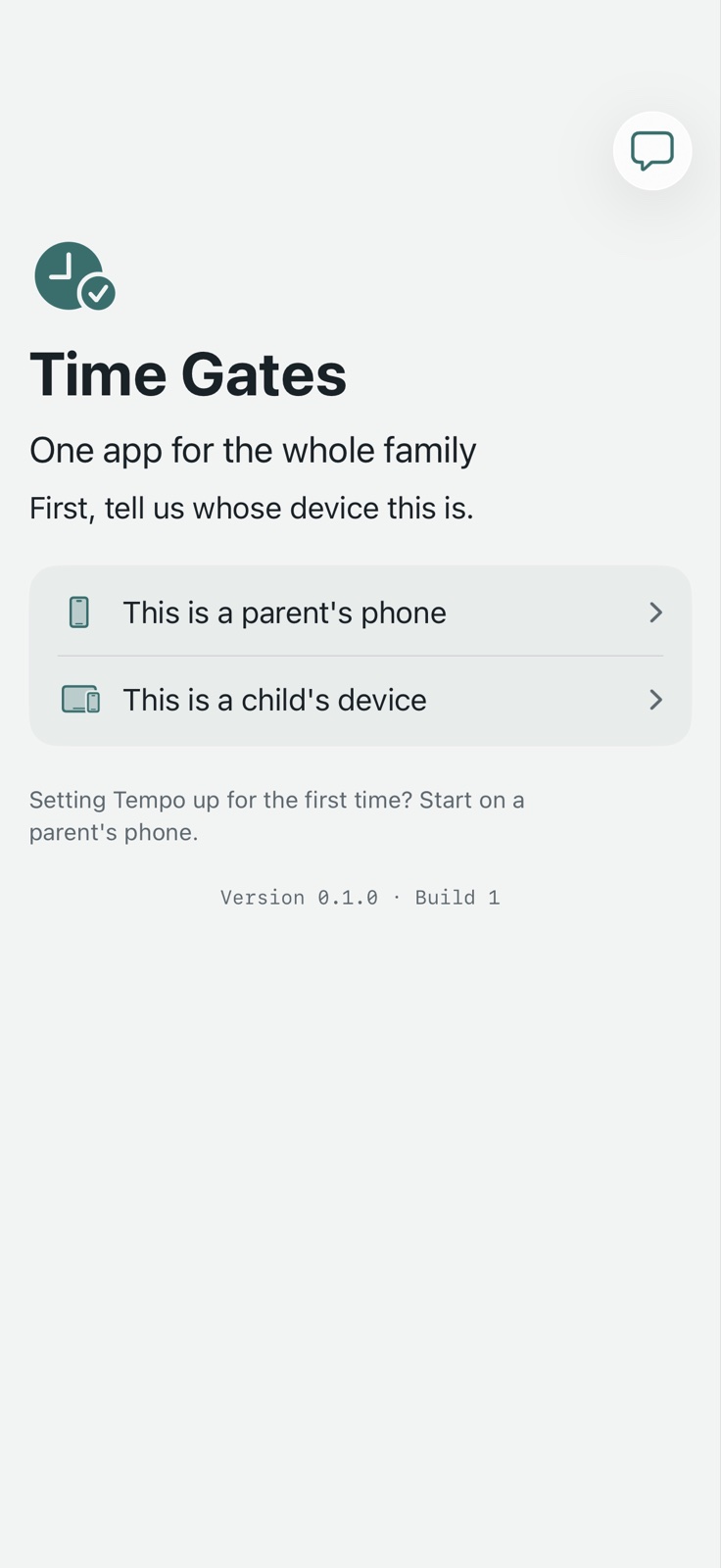
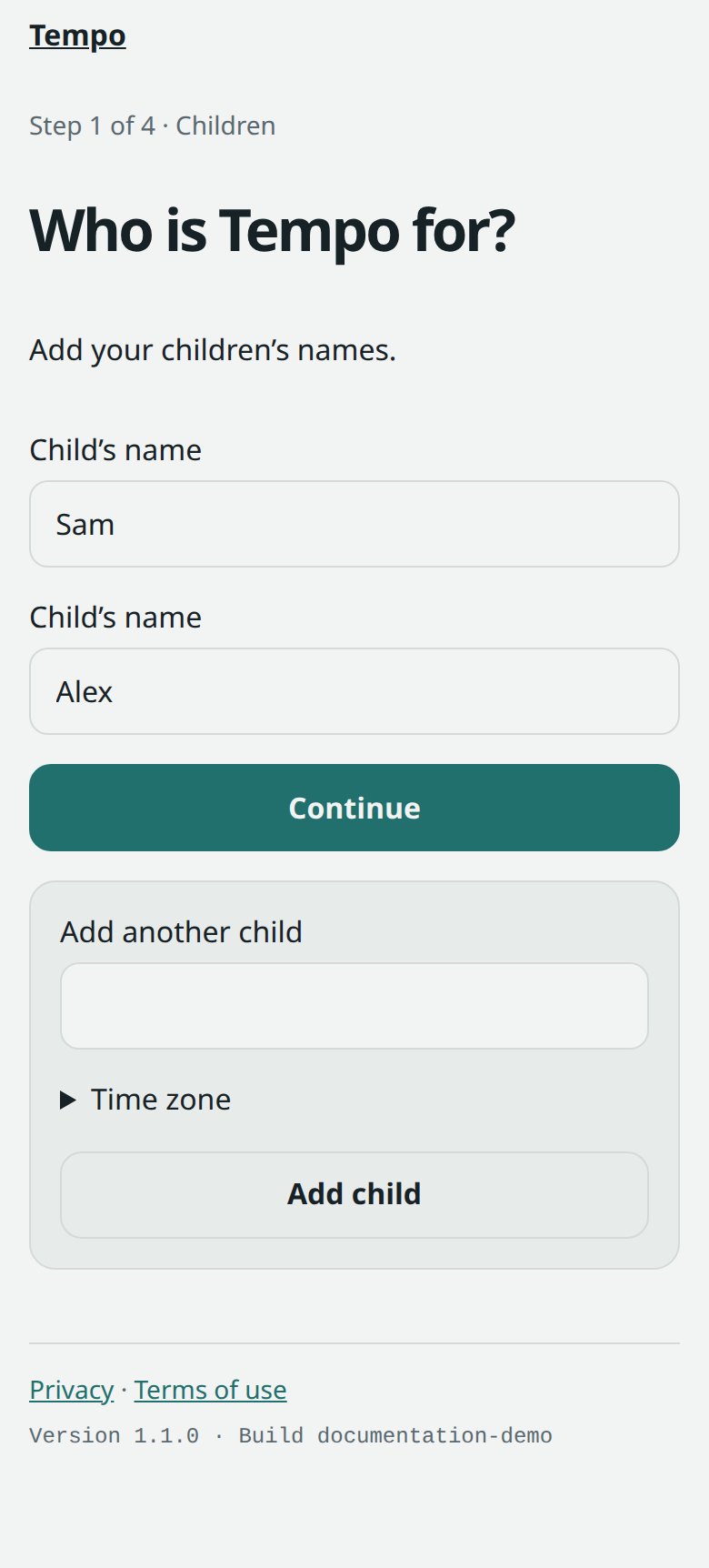
On a parent's iPhone, open Time Gates, choose This is a parent's phone, then Start a new account. Sign in with Google or Apple when asked. When the account is ready, choose Add a child and enter each child's everyday name.
- Use the child's everyday name so reminders feel familiar.
- Open the Time zone choice while adding a child and check it once. Time Gates uses it for every due time and part of the day.
- Time Gates opens the Time Gates website inside the app for account setup. For a larger screen later, open Time Gates in a browser, scan its sign-in QR from the parent phone, compare the matching phrase, and approve only the browser in front of you.
On a parent's iPhone, open Time Gates, choose that this is a parent's phone, and start a new account. Sign in when asked, add each child's everyday name, then check that the family time zone is right.
Start with two tasks
Choose up to two familiar tasks for each child. Give each one a clear name and a useful part of the day. You can enter more ideas now, but Time Gates saves those for later without sending reminders.
- Say exactly what done means, such as Put your bag away or Set the table.
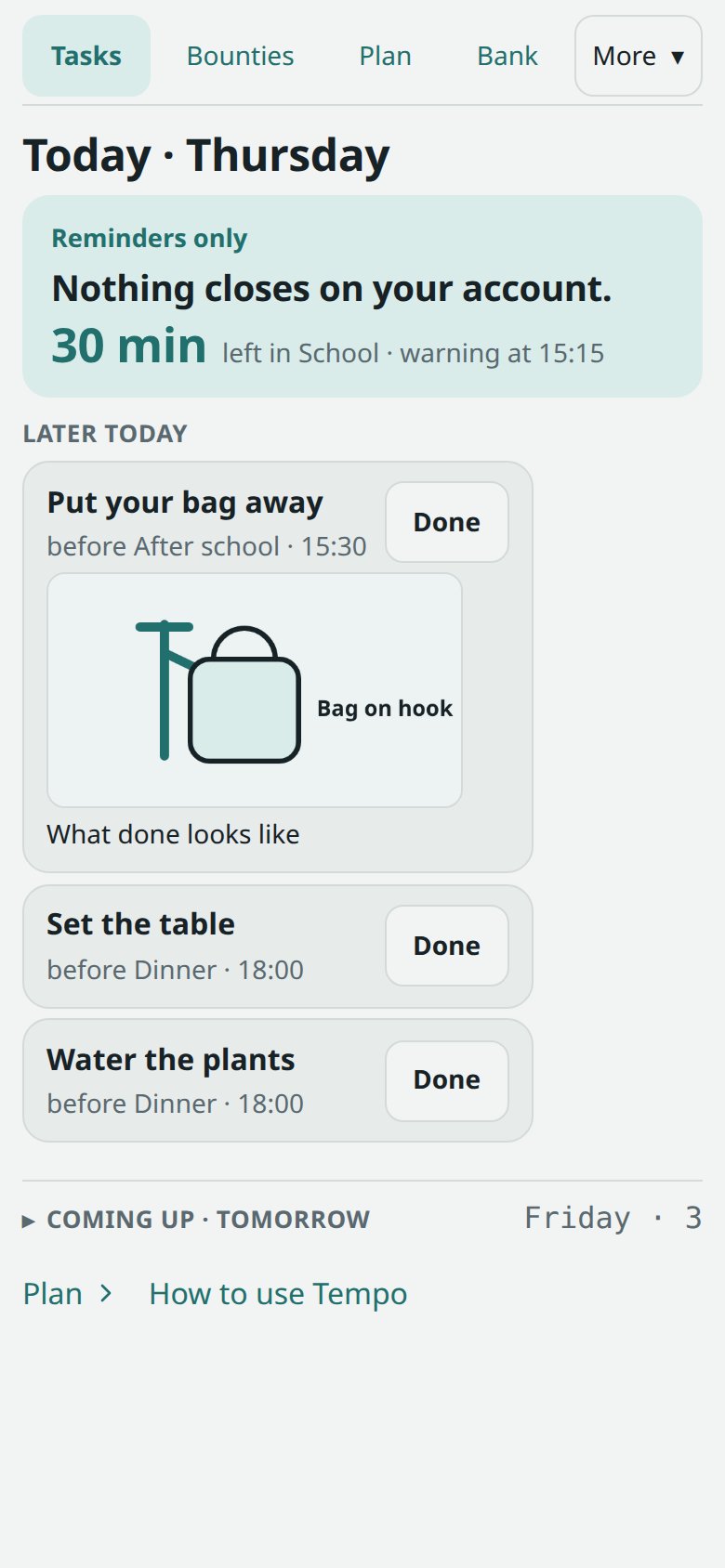
- Keep Reminders only on while everyone learns the routine. A late task will not close apps.
Start with two tasks that already belong in the day. Add a clear name and choose when each is due. Extra ideas can wait quietly for later.

Check the day's times
Choose the kind of day you have now, weekday or weekend, and check the times your family already knows: waking up, school or free time, dinner, wind-down, and sleep. Saved changes begin tomorrow.
- Finish one kind of day first. The other can wait.
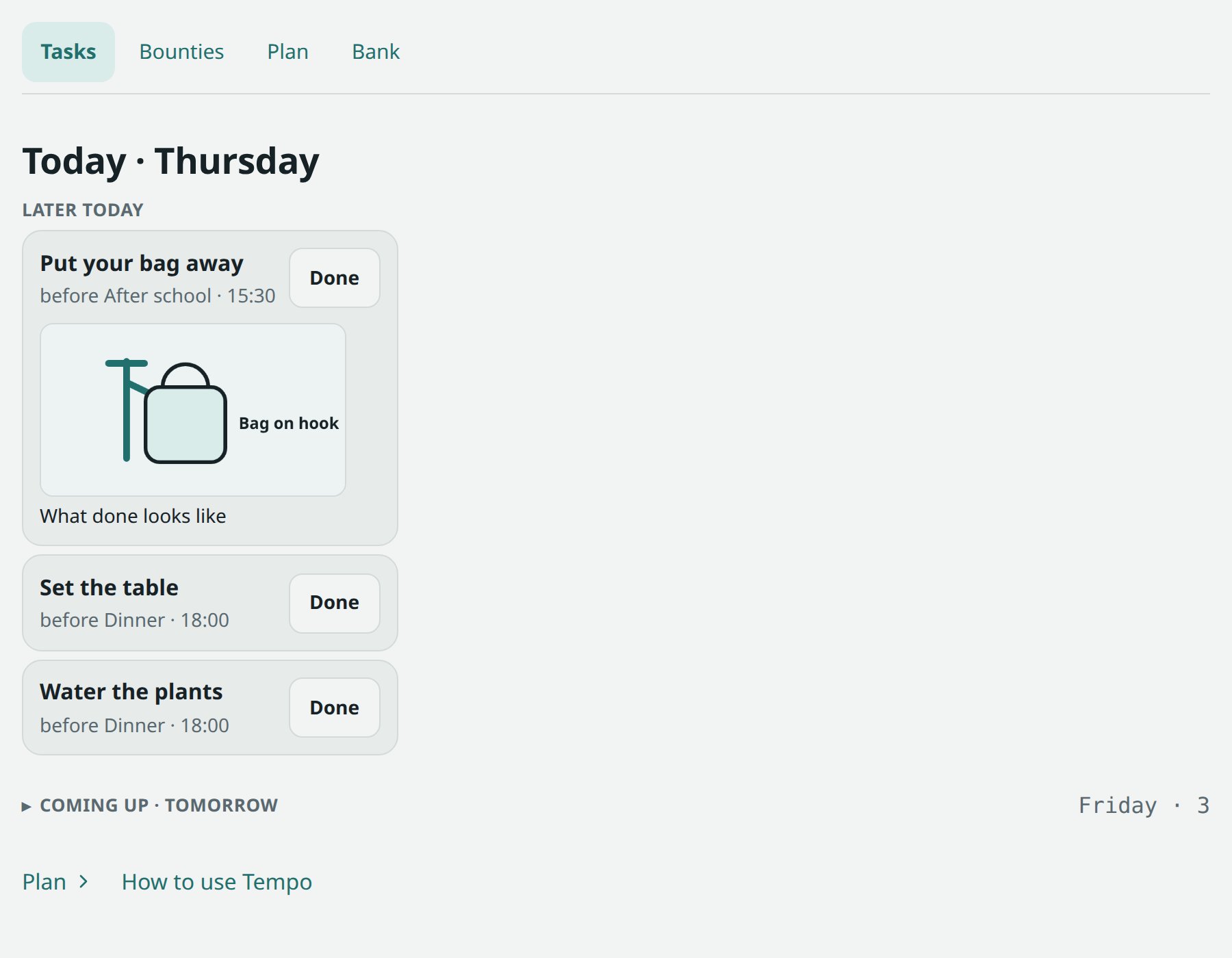
- If a visual reminder would help, add an optional parent example photo on the final Ready to start screen. You can also add or change it later on the Tasks page. It shows what done looks like.
Check the main times for the kind of day you have now. Keep the times that already fit. A parent can add a simple example photo later if seeing what done looks like would help.


Connect each child device
Install Time Gates on a child's iPhone or iPad, or install Time Gates on a child's Windows PC. Apple authorizes the child device directly. Windows can use the website's one-time code or a short-lived pairing request that a parent verifies.
- iPhone or iPad: open Time Gates on the child's device and choose This is a child's device. Read the introduction together, tap Turn Time Gates on, and complete Apple's parent approval. When the QR and matching phrase appear, open Time Gates on the parent phone and tap Scan pairing QR. Check the phrase, choose the child under Who is this for?, then tap Approve for that child. Review the app groups together; every group step can be skipped while you start with Reminders only.
- Windows PC: open Time Gates’ Download Time Gates page, download Time Gates for Windows, run the installer, and approve the administrator prompt. This testing build may show an Unknown publisher warning. If the website showed a six-digit code for this child, enter it under Pair this PC and choose Use this code. Otherwise choose Start pairing, scan or open the request on the parent phone, compare the matching phrase, choose the child, and approve the PC.
- Before enabling limits on Windows, show the child Time Gates stuck? on a closed screen. Safety release opens everything for fifteen minutes once per day, works offline, records the release, and tells a parent after the PC reconnects. A parent can choose Lock again.
On a child iPhone or iPad, open Time Gates, choose that it is a child's device, and turn Time Gates on with the parent present. Scan its pairing QR from the parent phone, compare the phrase, and choose the child. On Windows, enter the website's six-digit code or choose Start pairing. Approve only the device in front of you.
Allow useful notifications
Allow notifications when Time Gates asks on the parent and child devices. Windows reminders come from the Time Gates desktop app. Notice the first ordinary reminder together so everyone knows what it sounds like and what to do next.
- If an Apple prompt was declined, open the phone's Settings, choose Notifications, choose Time Gates, and turn on Allow Notifications.
- A child is reminded one minute and five minutes after a task becomes overdue, then reminders stop. A parent is notified once when the task first becomes overdue.
- If Windows offers a reminder plan, the child can choose when reminders begin: two hours, one hour, thirty minutes, fifteen minutes, or only when the task is due.
Allow Time Gates notifications on the parent and child devices. Notice the first scheduled reminder together. Marking the task Done stops its overdue reminders.
Use Tasks and Done
Each day, the child opens Tasks to see what is due now, what carried over from last night, and what is later today. When a task is finished, they tap Done. The parent can use Today and Review when something needs attention without turning the day into a scorecard.
- If the child forgets what a task means, look for the parent's what done looks like example.
- On iPhone or iPad, a requested completion photo opens the camera or photo chooser. Time Gates on Windows never uses a camera; it names the paired phone or tablet that can take the photo, or asks the child to get a parent.
The everyday rhythm is Tasks and Done. The child sees what is due, what carried over, and what is later today, then marks a task Done when it is finished.
After two days, ask how it is going
Time Gates asks the parent to check in after two days. Talk with the child first. Keep the small routine if it is helping. If it is not, choose one change together and try that change before adding another.
- Choose Keep this routine when it is helping, or Ask me again in two days when you need more time to tell.
- Add one of the tasks saved for later only if the current two feel manageable.
- Ask for a photo when a task is done only when a picture would settle a real question about whether it is finished. This starts immediately and needs a parent phone that has finished photo setup.
- Change the two overdue reminder times in Settings when one minute and five minutes do not fit the routine.
- Morning and night limits start immediately. Open Time Gates on the child's device together and finish app-group setup first. Morning keeps Essentials and Education, Bedtime keeps Essentials, Education, and Create, and Downtime and Sleep close the other groups. Daytime groups stay open.
After two days, ask how the routine feels. Keep this routine when it helps, or ask again in two days. If it does not help, agree on one change: another saved task, a photo when a task is done, different overdue reminder times, or morning and night limits.

Know what each photo does
A parent example photo and a child's proof photo have different jobs and different privacy rules.
- The parent example photo shows what done looks like. It uses authenticated household storage and is readable by the server so Time Gates can show it to the child with the task.
- A child's proof photo shows what they finished. It is encrypted for the parent's phone before upload. Time Gates’ server cannot open it and deletes the sealed copy after delivery or after fourteen days.
A parent's example photo is a reusable visual reminder stored with the task. A child's proof photo is private: it is encrypted for the parent before upload, and the server cannot open it.
Version 133 · Privacy · Terms of use · Appearance